How to Record and Share GTA 6 Clips on PS5 and Xbox Series
 GTA6 Clips editorial··5 min read
How to record GTA 6 clips on PS5 and Xbox Series X|S with built-in capture tools, get them to your phone, edit them fast and send them to gta6clips.com.
In this article
To record a GTA 6 clip on PS5, press the Create button on your controller and choose Save Recent Gameplay. On Xbox Series X|S, press and hold the Share button to save what just happened. Both consoles are always recording in the background, so you can grab that wild moment after it happens, not before.
GTA 6 launched today, and the clips are already flying. Here is how to capture yours, get it onto your phone, cut it down and send it to us.
Recording on PS5
The PS5 does most of the work for you. It keeps a rolling buffer of your recent gameplay, so you never have to remember to hit record.
Here is how it works, based on PlayStation's own support pages:
- Press the Create button on your DualSense controller to open the create menu.
- Choose Save Recent Gameplay to save a clip of what just happened. You can save anything from the last 15 seconds up to the last hour.
- Or choose Start New Recording to record from now on. A recording can run for up to an hour. Press Create again and select Stop Recording when you are done.
- Choose Take Screenshot if you just want a still image.
You can also change how the Create button behaves under Settings > Captures and Broadcasts. The shortcut presets are Standard, Easy Screenshots and Easy Video Clips, so you can set the button up to grab the capture you use most with fewer presses. The same settings area lets you pick the video file type and resolution, and choose whether your mic or party chat is included. If you include voice chat, ask your party first.
One thing to know: some scenes in some games are blocked from capture. If a clip will not save during a cutscene, that is probably why.
Getting PS5 clips onto your phone
The fastest way is the PlayStation App's auto-upload.
- Turn it on in Settings > Captures and Broadcasts > Captures, then switch on Auto-Upload.
- Your PS5 needs to be able to stay connected to the internet in rest mode.
- According to PlayStation, auto-upload covers videos under three minutes that are not 4K, plus screenshots from the Create menu or shortcuts.
- Uploaded captures stay in the PlayStation App for 14 days, so download the good ones to your phone before then.
Captures you made before turning on auto-upload will not appear. You can also copy anything from the Media Gallery to a USB drive.
Recording on Xbox Series X|S
The Xbox controller has a dedicated Share button in the middle.
- Press Share to take a screenshot.
- Press and hold Share to save a clip of what just happened. By default this is a short clip of the last few seconds of play.
- Change the clip length, resolution and what the Share button does in your console's Capture & share settings. Shorter lengths are available at higher resolutions, so if you want longer "record what happened" clips, drop the resolution.
- For longer footage, open the guide and choose Start recording to record from that point on.
Getting Xbox clips onto your phone
Use the Xbox app on iOS or Android.
- In your console's capture settings, set automatic uploads so your captures sync to your account.
- Open the Xbox app and go to your Captures. From there you can save a clip to your phone or share it straight to other apps.
Uploads can take a minute or two for video, so give big clips a moment.
Editing tips for better clips
You do not need fancy software. Most good clips are short and get to the point. A few rules we follow:
- Cut the run-up. Start one or two seconds before the action, not twenty. The PS5 lets you trim clips on the console, and every phone has a basic trim tool.
- Keep it short. Most great GTA clips are under 30 seconds. If it is longer, it had better be a full chase.
- Go vertical when it helps. For TikTok and YouTube Shorts, crop to 9:16 and keep the action in the middle of the frame.
- Keep the game audio. Crashes, sirens and NPC reactions are half the joke.
- Watch out for music. Songs on the in-game radio, or music you add yourself, can trigger copyright claims on some platforms. If you plan to upload, turn the radio down for clip-heavy sessions.
- No spoilers in the title. The story is brand new. If your clip shows a story moment, say so.
How to submit your clip to gta6clips.com
We feature the best GTA 6 clips from players, with your name on them. Here is how to send yours:
- Upload your clip to YouTube, TikTok or Twitch first. We embed clips from the original post, so we need a public link.
- Go to gta6clips.com/#submit.
- Paste the link into the Clip link field.
- Add your creator name (your channel or handle) so we can credit you.
- Tick the box to confirm it is your clip, or that you have the creator's OK, then hit Send clip.
By ticking that box, you let us feature the clip on the site and in our YouTube, TikTok and X compilations, always credited to you. You can ask us to remove it at any time.
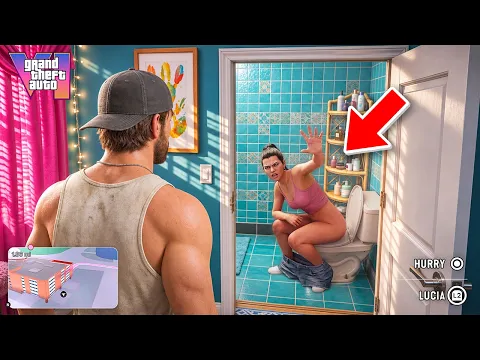
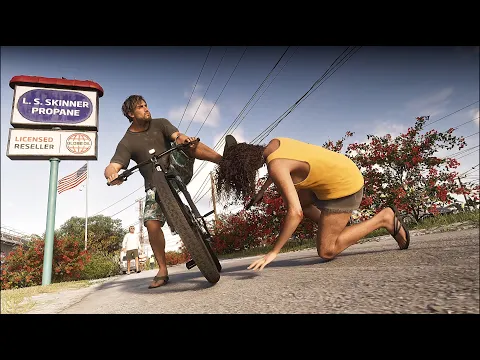
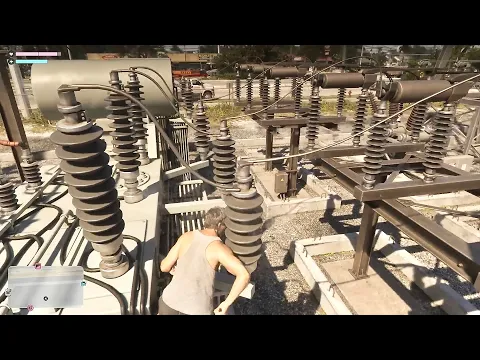
Watch it in action: See what makes a great clip in our collections of GTA 6 stunts at /best/gta-6-stunts and GTA 6 fails at /best/gta-6-fails.
FAQ
How do I clip the last 30 seconds of GTA 6 on PS5?
Press the Create button and choose Save Recent Gameplay, then pick the length you want. PS5 lets you save anything from the last 15 seconds up to the last hour.
How do I record GTA 6 on Xbox Series X|S?
Press and hold the Share button on your controller to save what just happened. You can change clip length and resolution in the Capture & share settings, or start a longer recording from the guide.
Can I submit a clip I did not record?
Only if you have the creator's permission. Our submission form asks you to confirm that the clip is yours or that the creator is OK with it being featured, and we always credit the original creator.
Watch it in action
Sources
GTA6 Clips is an unofficial fan site, not affiliated with Rockstar Games or Take-Two Interactive. Spotted a mistake? Tell us through the contact page.